# BoxTech Documentation
> API documentation for the BIC BoxTech container database
This file contains all documentation content in a single document following the llmstxt.org standard.
## Add container to your fleet
import MethodEndpoint from "@theme/ApiExplorer/MethodEndpoint";
import ParamsDetails from "@theme/ParamsDetails";
import RequestSchema from "@theme/RequestSchema";
import StatusCodes from "@theme/StatusCodes";
import OperationTabs from "@theme/OperationTabs";
import TabItem from "@theme/TabItem";
import Heading from "@theme/Heading";
import Translate from "@docusaurus/Translate";
Add container to your fleet
Request
---
## BIC Global Container Database
import ApiLogo from "@theme/ApiLogo";
import Heading from "@theme/Heading";
import SchemaTabs from "@theme/SchemaTabs";
import TabItem from "@theme/TabItem";
import Export from "@theme/ApiExplorer/Export";
The BIC BoxTech Global Container Database contains technical attributes of shipping containers for use in applications and automation
Used **only** for `POST /oauth/token` to exchange credentials for a JWT. All other endpoints reject Basic auth and require Bearer.
Security Scheme Type:
http
HTTP Authorization Scheme:
basic
JWT obtained from `POST /oauth/token`. **Required for every endpoint except `/oauth/token`.**
Security Scheme Type:
http
HTTP Authorization Scheme:
bearer
Bearer format:
JWT
Contact
BIC API Support: [info@bic-boxtech.org](mailto:info@bic-boxtech.org)
URL: [https://www.bic-boxtech.org](https://www.bic-boxtech.org)
Terms of Service
{'https://www.bic-code.org/api-terms-of-use/'}
---
## Collect all uploaded files
import MethodEndpoint from "@theme/ApiExplorer/MethodEndpoint";
import ParamsDetails from "@theme/ParamsDetails";
import RequestSchema from "@theme/RequestSchema";
import StatusCodes from "@theme/StatusCodes";
import OperationTabs from "@theme/OperationTabs";
import TabItem from "@theme/TabItem";
import Heading from "@theme/Heading";
import Translate from "@docusaurus/Translate";
Endpoint to retrieve a list of all uploaded files.
---
## Collect Pre-signed Url for Upload
import MethodEndpoint from "@theme/ApiExplorer/MethodEndpoint";
import ParamsDetails from "@theme/ParamsDetails";
import RequestSchema from "@theme/RequestSchema";
import StatusCodes from "@theme/StatusCodes";
import OperationTabs from "@theme/OperationTabs";
import TabItem from "@theme/TabItem";
import Heading from "@theme/Heading";
import Translate from "@docusaurus/Translate";
Collect Pre-signed Url for Upload
Request
---
## Exchange username/password (Basic auth) for a JWT bearer token
import MethodEndpoint from "@theme/ApiExplorer/MethodEndpoint";
import ParamsDetails from "@theme/ParamsDetails";
import RequestSchema from "@theme/RequestSchema";
import StatusCodes from "@theme/StatusCodes";
import OperationTabs from "@theme/OperationTabs";
import TabItem from "@theme/TabItem";
import Heading from "@theme/Heading";
import Translate from "@docusaurus/Translate";
Exchange username/password (Basic auth) for a JWT bearer token
---
## Get just the Max Gross Weight of a container
import MethodEndpoint from "@theme/ApiExplorer/MethodEndpoint";
import ParamsDetails from "@theme/ParamsDetails";
import RequestSchema from "@theme/RequestSchema";
import StatusCodes from "@theme/StatusCodes";
import OperationTabs from "@theme/OperationTabs";
import TabItem from "@theme/TabItem";
import Heading from "@theme/Heading";
import Translate from "@docusaurus/Translate";
Get just the Max Gross Weight of a container
Request
---
## Get just the Tare Weight of a container
import MethodEndpoint from "@theme/ApiExplorer/MethodEndpoint";
import ParamsDetails from "@theme/ParamsDetails";
import RequestSchema from "@theme/RequestSchema";
import StatusCodes from "@theme/StatusCodes";
import OperationTabs from "@theme/OperationTabs";
import TabItem from "@theme/TabItem";
import Heading from "@theme/Heading";
import Translate from "@docusaurus/Translate";
Get just the Tare Weight of a container
Request
---
## Get the technical details for a given container
import MethodEndpoint from "@theme/ApiExplorer/MethodEndpoint";
import ParamsDetails from "@theme/ParamsDetails";
import RequestSchema from "@theme/RequestSchema";
import StatusCodes from "@theme/StatusCodes";
import OperationTabs from "@theme/OperationTabs";
import TabItem from "@theme/TabItem";
import Heading from "@theme/Heading";
import Translate from "@docusaurus/Translate";
Get the technical details for a given container
Request
---
## Identify an ISO Size or Group Type Code
import MethodEndpoint from "@theme/ApiExplorer/MethodEndpoint";
import ParamsDetails from "@theme/ParamsDetails";
import RequestSchema from "@theme/RequestSchema";
import StatusCodes from "@theme/StatusCodes";
import OperationTabs from "@theme/OperationTabs";
import TabItem from "@theme/TabItem";
import Heading from "@theme/Heading";
import Translate from "@docusaurus/Translate";
Identify an ISO Size or Group Type Code
Request
---
## Identify who owns a given BIC Code
import MethodEndpoint from "@theme/ApiExplorer/MethodEndpoint";
import ParamsDetails from "@theme/ParamsDetails";
import RequestSchema from "@theme/RequestSchema";
import StatusCodes from "@theme/StatusCodes";
import OperationTabs from "@theme/OperationTabs";
import TabItem from "@theme/TabItem";
import Heading from "@theme/Heading";
import Translate from "@docusaurus/Translate";
Identify who owns a given BIC Code
Request
---
## Remove alert from a container in your fleet
import MethodEndpoint from "@theme/ApiExplorer/MethodEndpoint";
import ParamsDetails from "@theme/ParamsDetails";
import RequestSchema from "@theme/RequestSchema";
import StatusCodes from "@theme/StatusCodes";
import OperationTabs from "@theme/OperationTabs";
import TabItem from "@theme/TabItem";
import Heading from "@theme/Heading";
import Translate from "@docusaurus/Translate";
Remove alert from a container in your fleet
Request
---
## Remove container from your fleet
import MethodEndpoint from "@theme/ApiExplorer/MethodEndpoint";
import ParamsDetails from "@theme/ParamsDetails";
import RequestSchema from "@theme/RequestSchema";
import StatusCodes from "@theme/StatusCodes";
import OperationTabs from "@theme/OperationTabs";
import TabItem from "@theme/TabItem";
import Heading from "@theme/Heading";
import Translate from "@docusaurus/Translate";
Remove container from your fleet
Request
---
## Set an alert against the container
import MethodEndpoint from "@theme/ApiExplorer/MethodEndpoint";
import ParamsDetails from "@theme/ParamsDetails";
import RequestSchema from "@theme/RequestSchema";
import StatusCodes from "@theme/StatusCodes";
import OperationTabs from "@theme/OperationTabs";
import TabItem from "@theme/TabItem";
import Heading from "@theme/Heading";
import Translate from "@docusaurus/Translate";
Set an alert against the container
Request
---
## API Documentation
The most beneficial way to use BoxTech is by integrating it into your workflow and systems to provide container data or a source of checking information.
The BoxTech API is part of the BIC's digital services and you will need to follow the steps below to access this API.
## Steps to Access BoxTech
1. Register for an account by visiting one of the links below. Registration gives you immediate access to the API:
* Live Environment: [https://app.bic-boxtech.org/sign-up](https://app.bic-boxtech.org/sign-up)
* UAT Environment: [https://uat.bic-boxtech.org/sign-up](https://uat.bic-boxtech.org/sign-up)
:::note
UAT is only needed for **uploaders** who want to test fleet uploads before going live. If you are only looking to **GET** container information from BoxTech, you do not need UAT — just use the Live (production) environment.
:::
2. Explore the full API reference at [BIC Global Container Database](/api/bic-global-container-database) and download the API Specification to generate a client library for your language of choice.
## Limits and Quotas
BoxTech: Global Container Database provides supply chain safety and efficiency through data visibility: a non-profit platform for container technical details.
To enable us to provide the service as a non-profit and service the volume of requests we have put limits and quotas on API requests. The limits and quotas are subject to change.
### Quota Limits
The following apply to 'consumers' of the API, for a container fleet 'uploader' these do not apply. Each API query to BoxTech is for a single container only, and counts as a 'query', it is not possible to query for multiple units at a time.
* 5,000 queries per month
* 300 for containers marked with the same [BIC Code](https://www.bic-code.org/bic-codes/) per day
* 30 queries per second
:::info
If your usage is exceeding the above limits then please contact BIC to explain your use case for BoxTech in which case it will be evaluated and you may be granted a higher tiered usage plan. Acceptable requests for higher usage are generally reserved for container depot operators, terminals, carriers, and feeder operators. BIC fully support the use of BoxTech for larger users so please [contact BIC](https://www.bic-boxtech.org/contact/) for a higher usage plan.
:::
### Exceeding Quota Limits
If the quota is exceeded, the API will return an error code `429 (Exceeded Quota)` or `423 (Suspended Account)` and a message that the account has exceeded the quota or been suspended, see the [terms and conditions](https://www.bic-code.org/api-terms-of-use/) for more information.
### Recommended usage of BoxTech API
If you are providing software and operating a multi tenant system, we recommend that you use credentials for each tenant. Respecting the usage quotas is important to ensure that your service is not impacted for others by one tenant's usage.
However if the use of BoxTech is part of a larger system, and servicing many tenants at once then it is recommended to follow the advice above and contact the BIC to increase your quota usage, we have tiered access levels for validated use cases.
## Open API Documentation
The Open API Specification can be found at [/boxtech-api-v2.json](/boxtech-api-v2.json)
Full API reference documentation is available at [https://docs.bic-boxtech.org/api/bic-global-container-database](https://docs.bic-boxtech.org/api/bic-global-container-database)
---
## Introduction
BoxTech is a centralised, neutral, global database of intermodal container technical characteristics, operated by BIC (Bureau International des Containers). It is provided free of charge as a service to the international container transport industry.
Every shipping container in international trade is identified by a unique container number, structured in accordance with ISO 6346 — the international standard for the identification, coding and marking of freight containers. BIC is the registration authority for this standard and maintains the global register of container owner prefix codes.
For each container, BoxTech can hold the following technical characteristics: ISO size/type code; tare weight; maximum payload; maximum gross mass; internal capacity and dimensions; CSC plate detail including manufacturing date and maximum permitted stacking weight; smart container and tracking device attributes; and tank container attributes where applicable.
In addition to technical specifications, BoxTech records alerts for the container — including flags for sold, scrapped, lost or stolen equipment. These status records are important for safety and fraud prevention across the supply chain.
## How the register is organised
BoxTech operates on a two-role model. Container owners — primarily ocean carriers and leasing companies — upload and maintain their fleet data. All other supply chain parties — including terminals, depots, shippers, forwarders, feeder operators and customs authorities — access the database to retrieve technical information on specific containers.
Container owners may upload data by one of three methods: via API for real-time, automated event-driven updates; via SFTP for periodic bulk file upload; or via the BoxTech web interface for manual upload with no IT resource required. BIC recommends automated API integration as best practice to ensure the register reflecting the current state of a container fleet at all times.
Owners control which data fields are shared and with which parties. A tiered access model allows general users to query individual containers subject to rate limits per owner prefix.
## How to query the register
Any registered user can query BoxTech by entering a container number — the standard 11-character identifier consisting of the owner prefix code and a serial number with check digit. The query returns the technical characteristics held on record for that unit, subject to the sharing permissions set by the container owner.
Queries may be made via the BoxTech web interface at https://app.bic-boxtech.org, or programmatically via the BoxTech API for integration into terminal operating systems, transport management systems, stowage planning software or other logistics platforms.
The [API documentation](/api/bic-global-container-database) outlines in detail how to easily integrate BoxTech to your systems.
Full details on BoxTech and the BIC can be found at [https://www.bic-boxtech.org](https://www.bic-boxtech.org)
For feature requests, support or other queries please raise a GitHub issue at [https://github.com/bic-org/Boxtech](https://github.com/bic-org/Boxtech) and we will reply accordingly.
## Register for Access
Access to BoxTech is free, you just need to register to use the service and verify your email account.
Registration can be found at [https://app.bic-boxtech.org/sign-up](https://app.bic-boxtech.org/sign-up)
## User Roles
You can use BoxTech as either:
* Consumer (the default role)
* Uploader
#### Consumers
As a consumer you get full access to BoxTech to query the containers in the database, you only need the container number you are looking for and you can [search using the web interface](user-guide/search-boxtech.md) for occasional use OR use the [API to integrate](api/api-documentation.md) or script queries to BoxTech from your own application.
You will need to register to gain access, and can start using the application immediately.
#### Uploaders
To [add your containers to BoxTech](user-guide/managing-your-fleet.md) and manage your fleet or [apply container alerts](user-guide/container-alerts.md) to containers you will need to have uploader rights. To qualify for this you will need to register as an uploader in BoxTech and provide the BIC prefix that applies to you.
This information is verified by BIC and once approved you will have the ability to start managing your container fleet and alerts.
You will gain immediate access to BoxTech as a `consumer` but only have `uploader` rights until verification has taken place by the BIC team.
When registering for BoxTech provide one of your BIC codes and we will verify your account as part of your application to become an uploader.
If you are already registered as a consumer then, once logged into BoxTech you can request access by clicking the button below and providing a BIC Code.

## Issues, Support or Feature Requests
We are always interested to hear your ideas for BoxTech, and to support your journey to integrating BoxTech into your systems. Please raise a **GitHub issue** so we can manage these requests; we will be happy to assist and hear from you.
[https://github.com/bic-org/Boxtech](https://github.com/bic-org/Boxtech)
## Use Case Examples
### Container Tare Weight for SOLAS VGM
BoxTech allows shippers, terminals, depots, and other supply chain participants to instantly obtain technical information about containers, such as tare weight, size/type and maximum gross mass. BoxTech means a one-stop-shop to obtain container tare weights for use in Method 2 SOLAS VGM calculations.
To obtain the tare weight for a given container you would use the [Get the technical details for a given container](/api/get-the-technical-details-for-a-given-container) endpoint and look for the `tare_kg` in the response, you can now use this in your SOLAS VGM method 2 calculations.
### Terminal Process
BoxTech supports processes for terminals and depots by allowing them to instantly obtain technical information about a container at gate-in, such as ISO size/type code and maximum gross mass.
BoxTech means a one-stop-shop to obtain container max weights for your automated safety checks within a terminal.
For safety you may want to obtain the max weight for a given container to cross check the weight of a container on arrival at the port or terminal.
To obtain the max gross mass weight for a given container you would use the [Get the technical details for a given container](/api/get-the-technical-details-for-a-given-container) endpoint and look for the `max_payload_kg`, or for the loading process the `max_gross_mass_kg`, in the response.
---
## Automating the Updates
Now you have uploaded your container fleet to BoxTech you will need to think about keeping it updated, there are a few ways to do this and the key part is to establish a process that fits well with your system and internal process. We would recommend that you consider automating your updates to BoxTech, this ensures your fleet is regularly updated and makes the uploading process more efficient. BoxTech offers two options for automation:
1. Integrate the **API** into your system and container process *(preferred)*
2. Send the file to BoxTech using **SFTP** on a schedule
## Option 1: API (preferred)
The API is flexible and supports two patterns, which you can mix to suit your system. You can be **event driven**, adding hooks into your system events to update BoxTech a single container at a time as changes take place, in simple language terms
> When new container added to the fleet send a NEW CONTAINER message with technical details to BoxTech
>
> For each container sold in my system send a SOLD alert to BoxTech
Or you can **batch upload multiple containers in a single API call**, sending many containers at once — useful for periodic or bulk updates without needing to upload a file. Typically you would perform an initial fleet upload, then keep BoxTech updated using whichever pattern fits your process.
This approach will mean implementing the BoxTech API into your system, a great way to be fully integrated with BoxTech, it requires a little more in terms of IT resource and planning. To get started, see the [API Documentation](/guides/api/api-documentation), which covers registering for immediate access, authentication, and example queries. It's also useful to set up a call with the BIC team to familiarise you with the API and give you test platform access.
## Option 2: SFTP
If you output reports to update BoxTech then SFTP may be a good way to automate the updates, using SFTP is like having a shared folder between your organisation and BoxTech, your system securely connects to the shared folder on BoxTech and uploads the same format report that you would use if logging into the website. This approach can be for as little as 1 container or up to a fleet file of millions of containers. This approach is recommended if you want to provide periodic updates and can produce outputs in CSV format from your system, it's straightforward for your IT team to implement.
To request SFTP access, please contact the BIC team by email at [info@bic-boxtech.org](mailto:info@bic-boxtech.org) noting your BIC Code and that you would like to upload by SFTP.
## Prefer the web interface?
If you would rather not automate, you can continue to update your fleet manually on a regular basis through the website [https://bic-boxtech.org](https://bic-boxtech.org). See [Managing your Fleet](/guides/user-guide/managing-your-fleet#upload-your-fleet-to-boxtech) for the step-by-step manual upload process.
---
## BoxTech Dataset
BoxTech stores a number of data elements about a container, the details of which can be found below.
## BIC Code Holder and Current Operator
There are two parties that are often required to be known for a container, and these are the definitions and how they are determined:
### BIC Code Holder
The owner of the BIC Prefix that is marked on the container, this company hold an account with BIC and are the registered code holder. This could be for example a lessor, carrier or shipper with own containers.
### Current Operator
If the container is marked with a BIC prefix belonging to a lessor, they may not be the current operator of the container, as it will likely be 'on hire' to another company. When an `uploader` provides their fleet to BoxTech, if they are not the BIC Code Holder they will become the current operator, when they off hire OR another company on hires and uploads their fleet they will be removed and the new operator added.
## Physical Characteristics
The Physical Characteristics are the details that are marked on the container as per ISO6346
`Container Number` The container number for the unit, a combination of the BIC Code prefix, equipment_identifier, serial_number and check_digit
`Detail ST` is the ISO Container Detail Type Code as detailed in ISO6346
`Group ST` is the ISO Container Group Type Code as detailed in ISO6346, it is determined from the `Detail ST`
`Max Gross` is the maximum weight that the container including its own weight and the weight of the goods can safely contain. This weight should not be exceeded. Detailed in kgs and lbs.
`Tare Weight` is the Tare Weight of the container, detailed in kgs and lbs.
`Max Payload` is the maximum weight of the goods that can be loaded in the container, detailed in kgs and lbs.
`Cubic Capacity` is the volume that the container has capacity for internal storage. Detailed in m3 and cuft.
## Dimensions
Note that where the dimensions are not provided on upload for the external measurements they are provided under ISO6346 for the container type, where available.
`External Length` - The length of the container measured from the outside. Detailed in mm and ft.
`External Width` - The width of the container measured from the outside. Detailed in mm and ft.
`External Height` - The height of the container measured from the outside. Detailed in mm and ft.
## Conversions
### Weights (kgs/lbs)
Where the weight of a container is provided in only 1 of the unit types, it will be calculated for the other using the following calculation.
`LBS / 2.20462 = KGS`
`KGS * 2.20462 = LBS`
### Volume (m3, cuft)
Where the volume of a container is provided in only 1 of the unit types, it will be calculated for the other using the following calculation.
`CBM * 35.3146667 = CUFT`
`CUFT / 35.3146667 = CBM`
## Smart Container Attributes
Smart Containers have the following Attributes which can be added
| BoxTech Field | Allowable Values | Description |
| ------------------------------- | --------------------- |---------------------------------------------------------------------------------------------------------------------------------|
| container\_number | BICU1234567 | Container number of which to apply the smart container data fields |
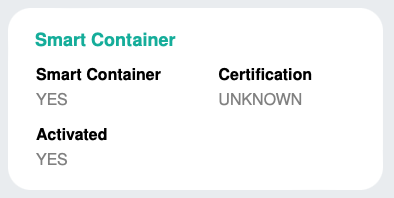
| smart\_container | `YES` or `NO` | Indicate if the container is equipped with a smart device |
| smart\_container\_certification | `UNKNOWN`, `A1`, `A2` | Which certification is applied to the smart container device, for options see the [API guide](/api/add-container-to-your-fleet) |
| smart\_container\_activated | `YES` or `NO` | Indicate if the device is active or deactivated |
### Viewing the Smart Container Attributes
Once you search for a container you will see for containers with smart container attributes the details as shown below
---
## Change Password
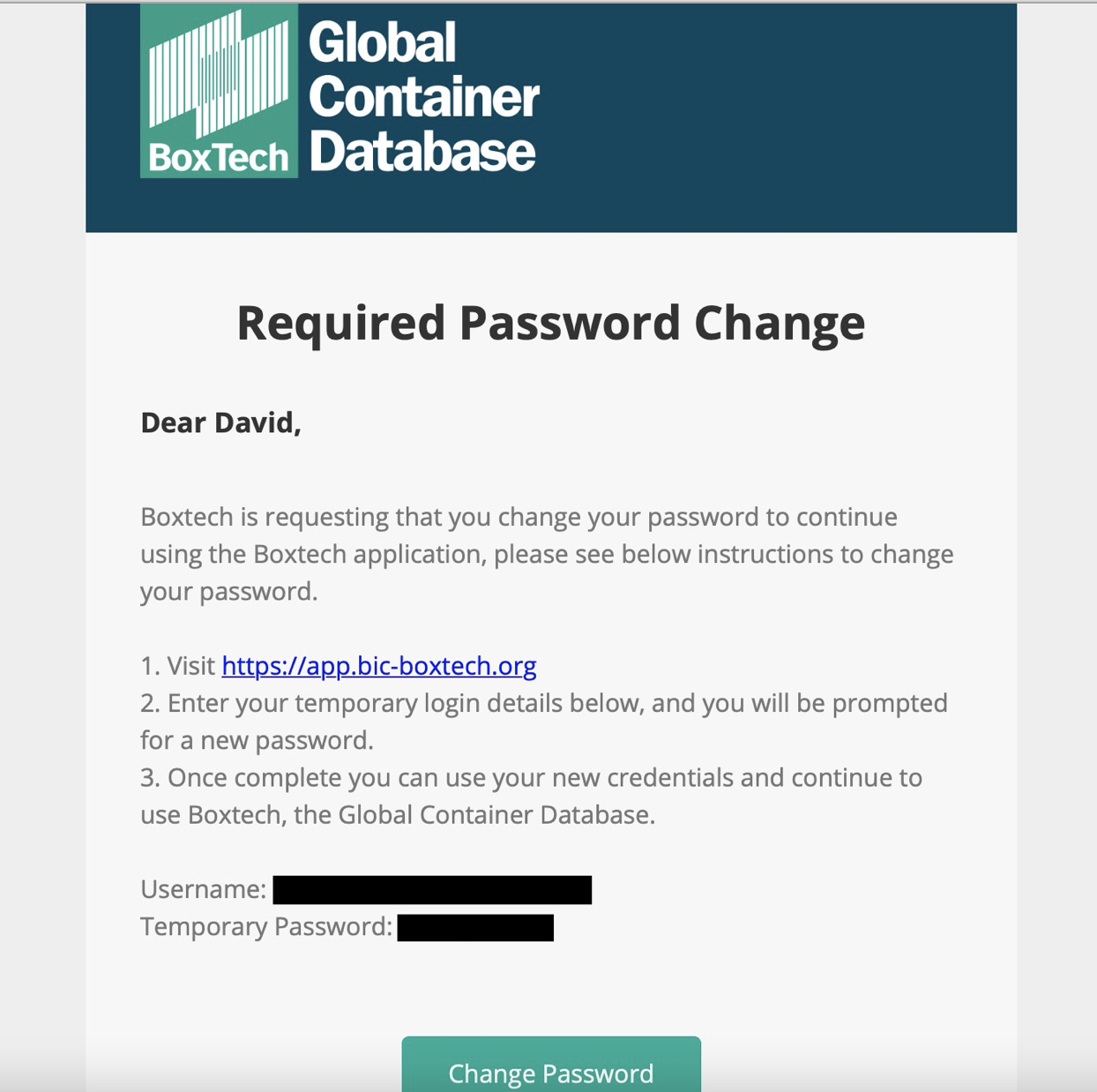
When your account is migrated to BoxTech you will be requested by email to change your password to continue using the application, this step will apply for web users and API users during the migration only.
## Step 1 - Email notification of required password change
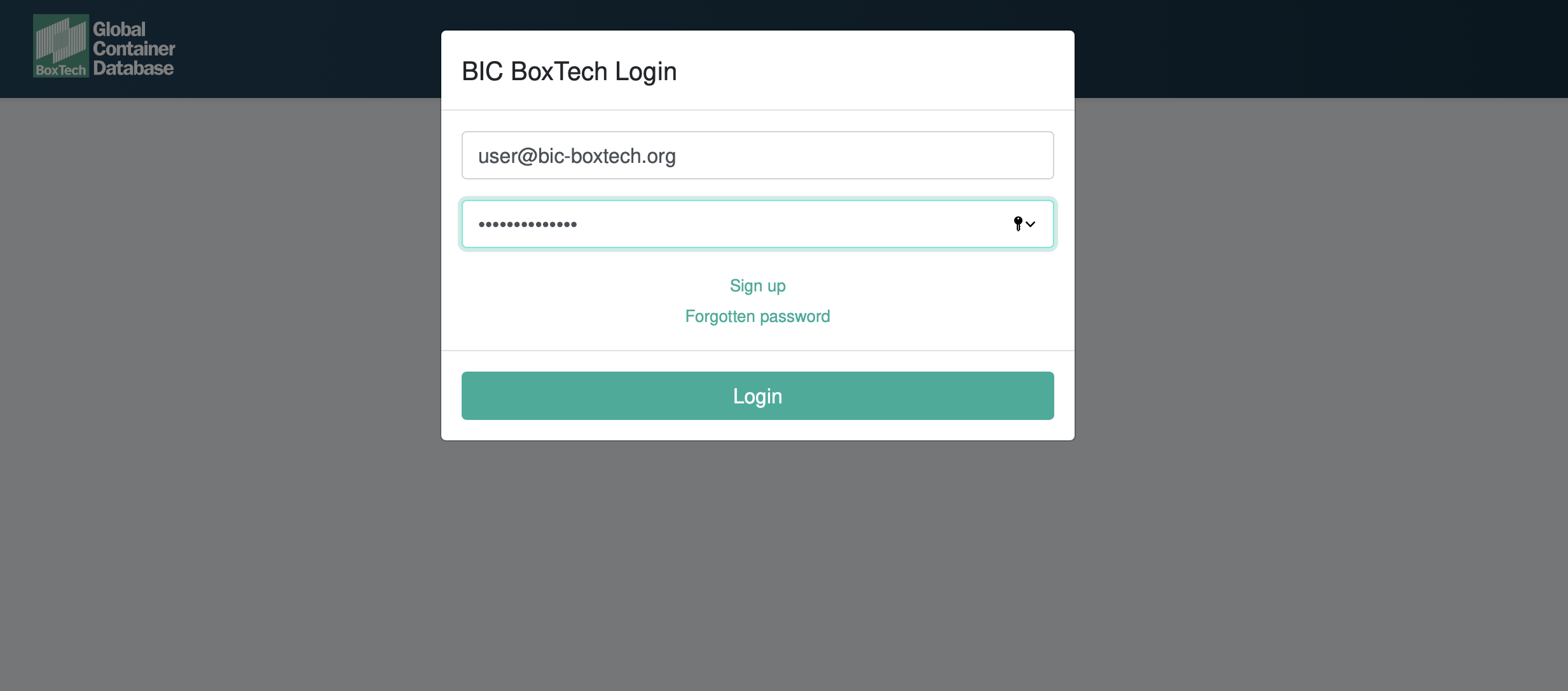
## Step 2 - Login using temporary credentials
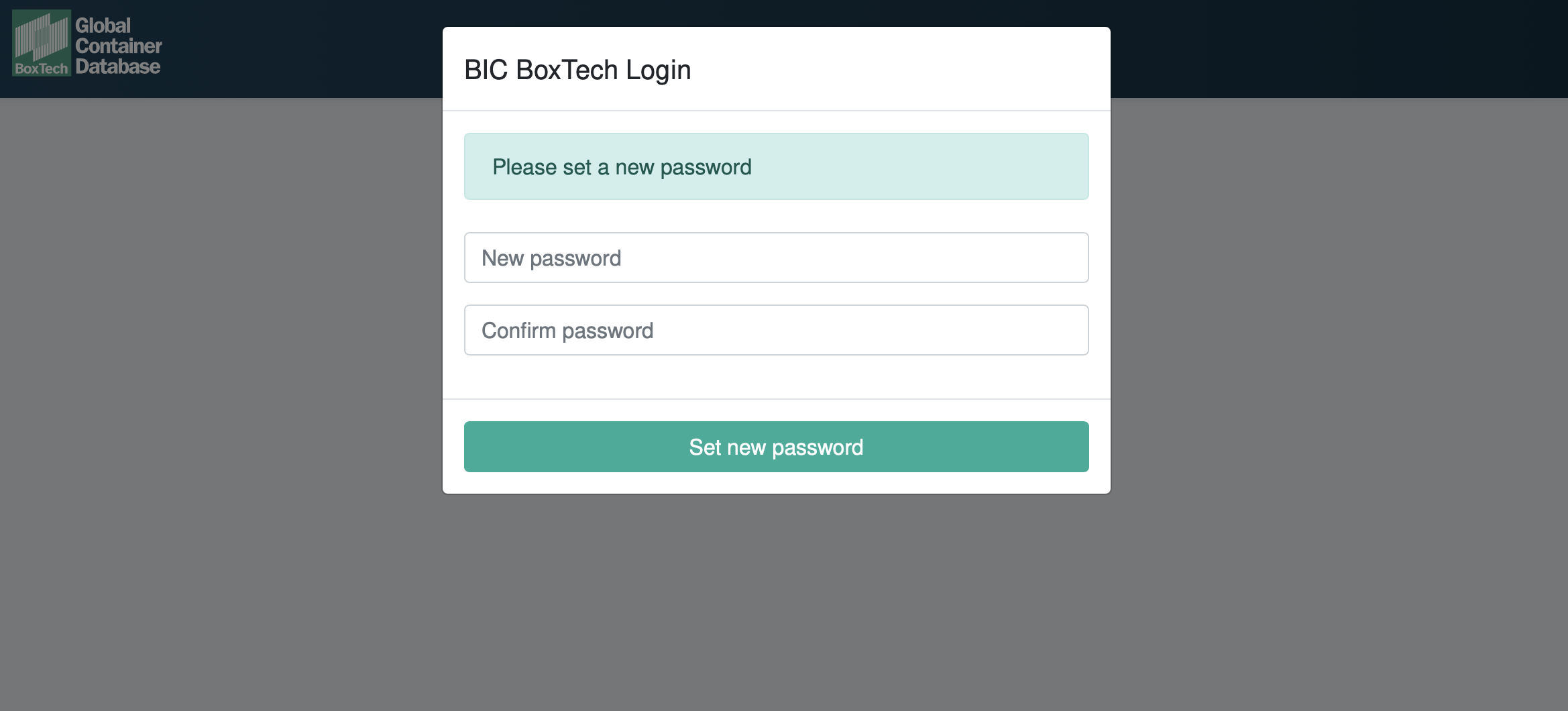
## Step 3 - Set new password
Set your new password, this will be subject to some restrictions for security
## Complete setup
If you have an API integration you will need to update your application to use your new credentials.
You will now be able to use BoxTech to search for containers, upload your fleet, on or off hire containers via the web and API
---
## Container Alerts
## Activating or deactivating alerts in BoxTech
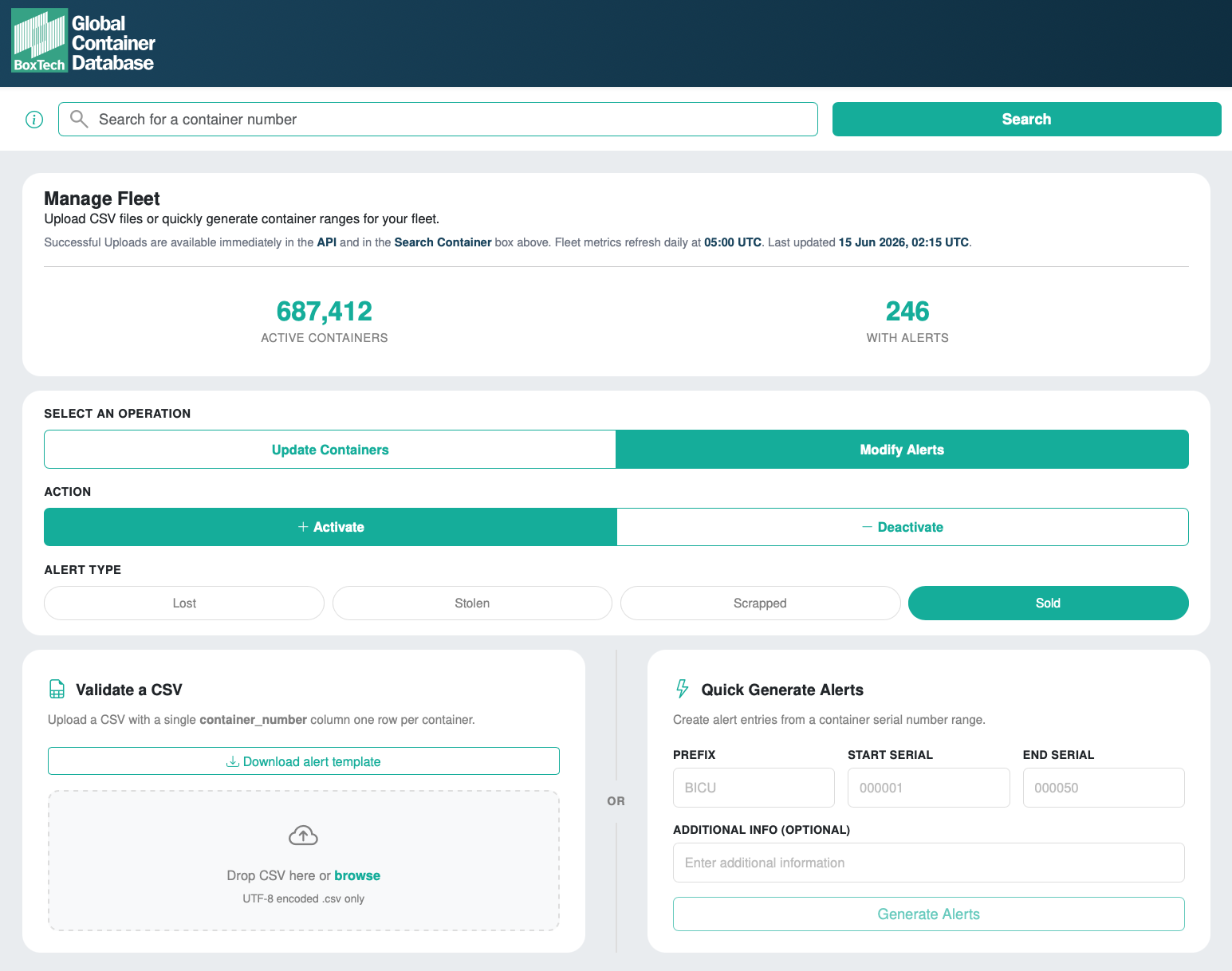
To activate or deactivate alerts you must have `uploader` rights in BoxTech. Follow the [Manage Fleet](/guides/user-guide/managing-your-fleet#upload-your-fleet-to-boxtech) but use the 'Modify Alerts' option and choose to activate the alert or deactivate the alert for the container(s)
Once logged in you have 4 alert types:
* Sold
* Scrapped
* Lost
* Stolen
Select the category of alert, and follow the onscreen instructions if uploading your alert template in csv format. You will specify in the upload if you wish to activate or deactivate the alert.
You can also integrate BoxTech into your application and activate or deactivate your alerts using the API endpoints documented in the [Open API Specification](../api/api-documentation.md)
## Alert types
BoxTech contains a series of alerts grouped as:
* Sold
* Scrapped
* Lost
* Stolen
If an alert is active for a container it will be shown on the search results and in the API response for that container.
In all cases BoxTech will continue to show the container details for the container, but in all cases the alert type and text will be provided when active.
### Sold
The container has been sold by the BIC Code Holder and is no longer part of their owned fleet, containers that have been sold should be remarked by the new owner if they are to continue circulation for international movements.
BoxTech will continue to show the container details for the container, but in all cases the alert type and text will be provided.
:::info
It is possible to make a declaration of sale for containers where you are not the BIC Code Holder for the container. The process is the same as Sold, the container will be shown with an alert to indicate you have made a '**public record of sale**', the date of this alert will also be timestamped by BoxTech and viewable by anyone searching for the container.
:::
### Scrapped
The container has been scrapped by the BIC Code Holder and is no longer part of their owned fleet, containers that have been scrapped would not normally continue circulation for international movements, the intention is that the container has been or is being disposed of.
BoxTech will continue to show the container details for the container, but in all cases the alert type and text will be provided.
### Lost
The container is flagged as lost by the BIC Code Holder, meaning that whilst it is still in their fleet the whereabouts of the container are currently unknown and have been for a period of time, their internal criteria for identifying containers as lost is met, anyone finding this container should contact the BIC Code Holder.
### Stolen
The container is flagged as stolen by the BIC Code Holder, meaning that whilst it is still in their fleet the whereabouts of the container are currently unknown, the theft of the container has been reported to authorities and a police report filed. Anyone finding this container should contact the BIC Code Holder.
---
## Fleet Analytics
Fleet Analytics gives you an at-a-glance summary of the totals and weight characteristics of your container fleet. The metrics are refreshed daily, and the page shows when the data was last updated.
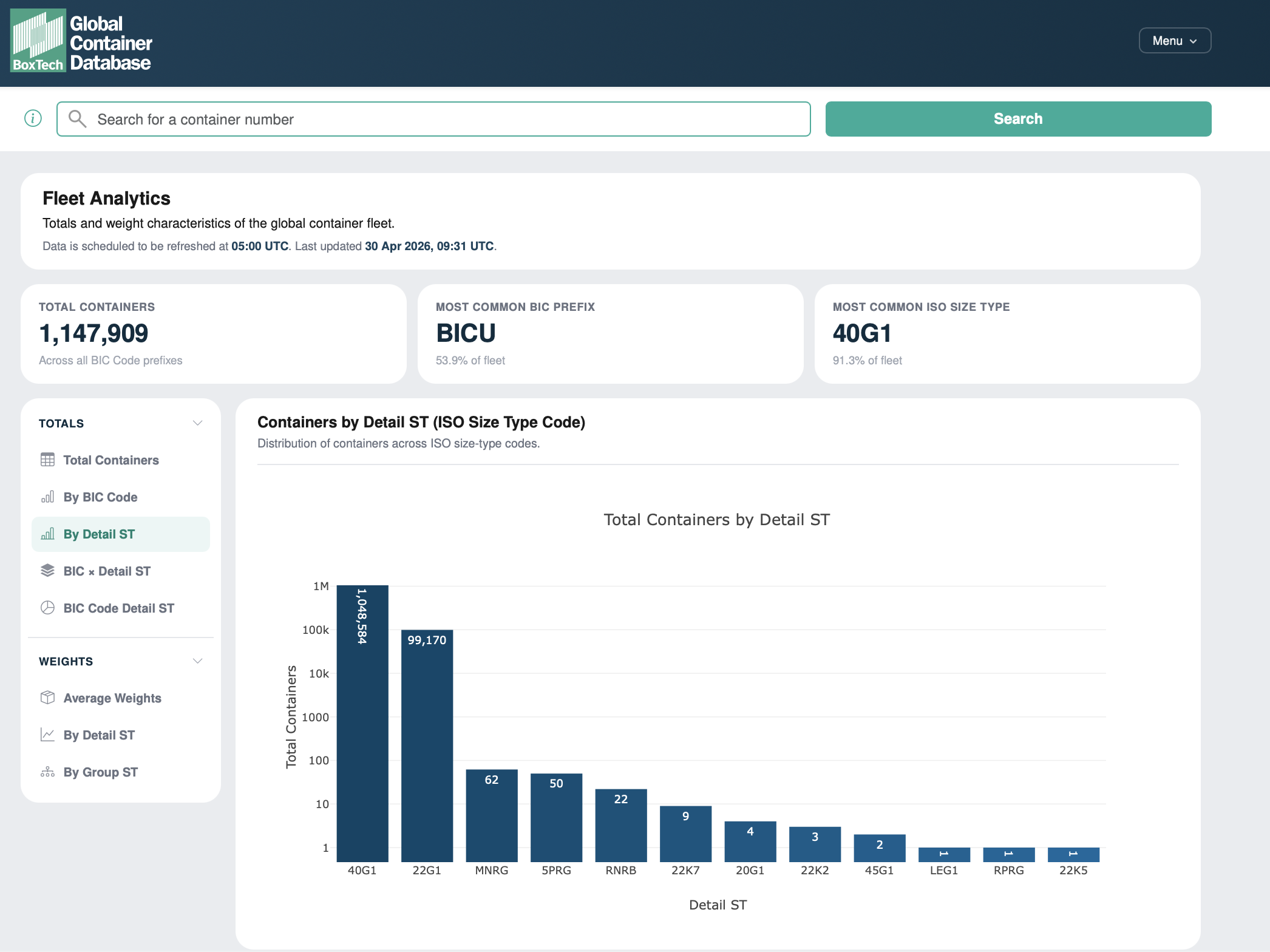
At the top of the page you will see three headline figures:
- **Total Containers** — the number of containers across all of your BIC Code prefixes.
- **Most Common BIC Prefix** — the prefix that accounts for the largest share of your fleet.
- **Most Common ISO Size Type** — the size-type code (Detail ST) most frequently found in your fleet.
Use the side navigation to move between the analytics, which are grouped into **Totals** and **Weights**.
## Totals
The Totals views break down how your fleet is composed:
- **Total Containers** — every container grouped by BIC Code prefix.
- **By Detail ST** — distribution of containers across ISO size-type codes.
- **BIC × Detail ST** — the size-type breakdown stacked within each BIC prefix.
- **BIC Code Detail ST** — the per-prefix share of each size-type code.
## Weights
The Weights views summarise the weight characteristics of your fleet:
- **Average Weights** — the mean tare, max payload, and max gross mass, viewable by Detail ST (size type) or Group ST (group type).
- **By Detail ST** / **By Group ST** — the five-number summary (minimum, 25th percentile, median, 75th percentile, maximum) of tare, max payload, or max gross mass for each size-type code or group.
:::note
Fleet Analytics reflects the containers held in your fleet at the last daily refresh. Recently uploaded containers are available immediately in search and the API, but will appear in these metrics after the next refresh at 05:00 UTC.
:::
---
## Managing your fleet
## Uploader access request
To maintain your fleet in BoxTech you need to have the `uploader` role attached to your account. You can request this one of two ways:
1. When registering for access to BoxTech include one of your BIC Code Prefix's on the application form
2. Once logged into BoxTech for the first time you can request access from teh homepage by entering one of your BIC Code Prefixes
The BIC Code Prefix must be one owned by your company, BIC will cross-check this and verify your relationship to the BIC Code Holder's account in BoxTech, the point of contact will be notified and upon confirmation your account will be approved. If you do not know your point of contact, please contact the BIC.
## Upload your fleet to BoxTech
This guide walks you through every step of uploading your container fleet using the web interface at app.bic-boxtech.org. The process takes only a few minutes and the platform will guide you through any issues with your data before anything is submitted.
The process below is the same for Fleet In and Fleet Out
### Step 1: Login and open manage fleet
Go to https://app.bic-boxtech.org and log in to your account. From the homepage, click 'Open Manage Fleet'. You will see a summary of your active containers and any containers with current alerts.
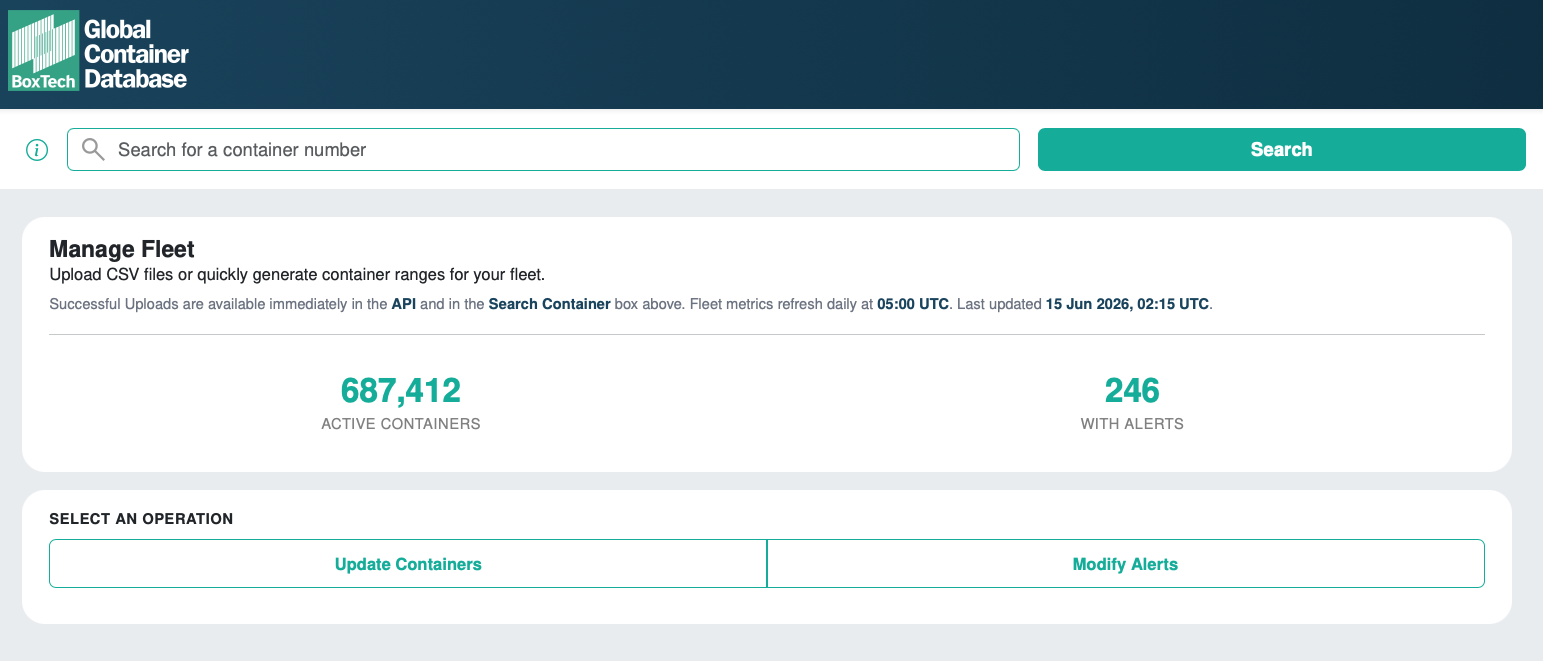
### Step 2: Select update containers and choose fleet in
Under Select an Operation, click `Update Containers`. Then under Action, select `Fleet In` to add or update containers in your fleet.
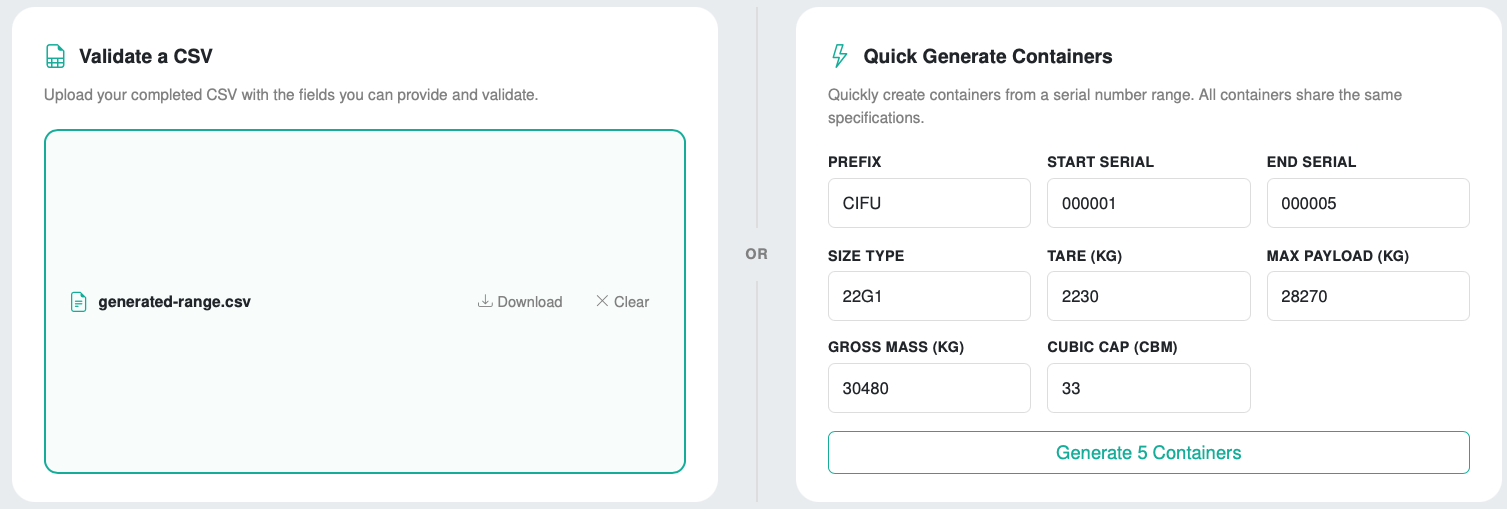
**Option 1 - Upload with a CSV File**
You can now choose how to add containers to your fleet, if you are loading up a large number of containers then using a CSV template that can be populated from your own system is a good way to ensure consistency.
You can use the default template which holds all fields OR as a one time action, build your own using our [template builder](#template-builder) including just the fields that you wish to share or have available within your system.
For CSV uploads you can drag and drop the file onto the area on screem or click 'browse' to find it on your computer. The containers in the file will appear on the validate containers section below for you to review before uploading to BoxTech.
**Option 2 - Use Quick Generate**
Alternatively if you prefer or have a smaller batch of containers with sequential serial numbers you can use the 'Quick Generate' to provide the base level information for BoxTech. This works for sequentially numbered containers, BoxTech will automatically calculate the container check digit for you, so just enter the 6 digit serial number after the BIC Code prefix. You also need to provide:
- ISO Size Type (use the detail code that's labelled on your container)
- Tare Kgs
- Max Payload
- Gross Mass
- Cubic Capacity (optional)
Clicking Generate adds the containers to the validation screen below for you to review before uploading them to BoxTech.
### Step 3: Validate and confirm upload
The platform validates every row immediately. A summary appears below the upload area showing how many rows are valid and how many have errors.
- Valid rows are shown with a green indicator.
- Rows with errors are highlighted in red, with a specific message describing the issue for each row.
- Use the show errors only toggle to focus on rows that need attention.
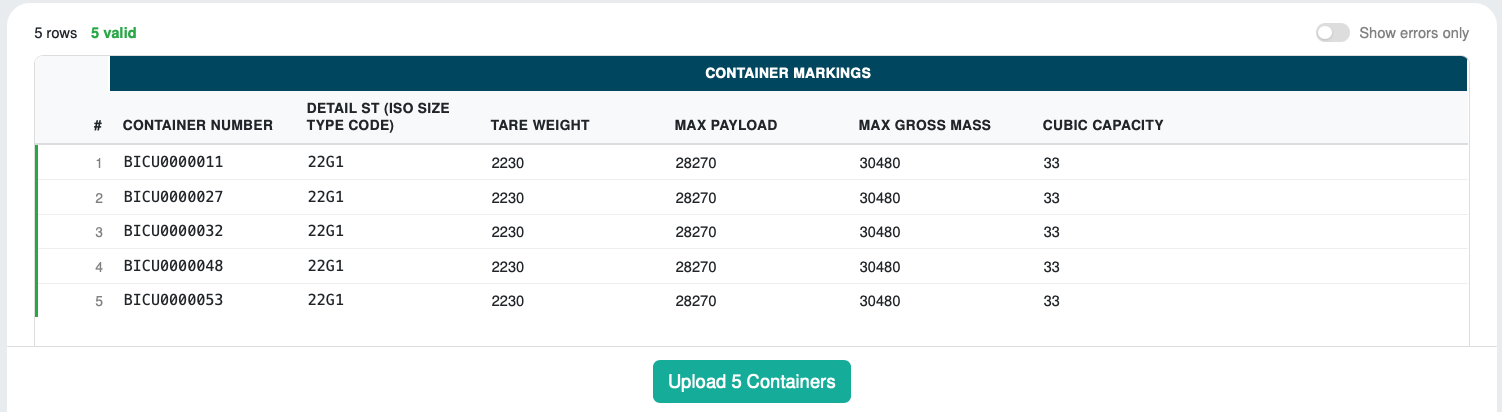
Once validation is complete, you have two options:
- Upload all valid rows immediately by clicking the upload button. Containers with errors are skipped — your clean data enters the database straight away.
- Download the invalid rows as a separate CSV file, correct the errors, and re-upload them as a follow-up.
After clicking upload, a progress indicator confirms that your file is being processed. You can leave the page at any time — processing continues in the background.
You will receive an email on completion of upload, and you can view your upload history within BoxTech at anytime.
## Template builder instructions {#template-builder}
You can either use the default template for BoxTech uploads which contains all fields or create a bespoke template to fit just the data fields you wish to share to BoxTech.
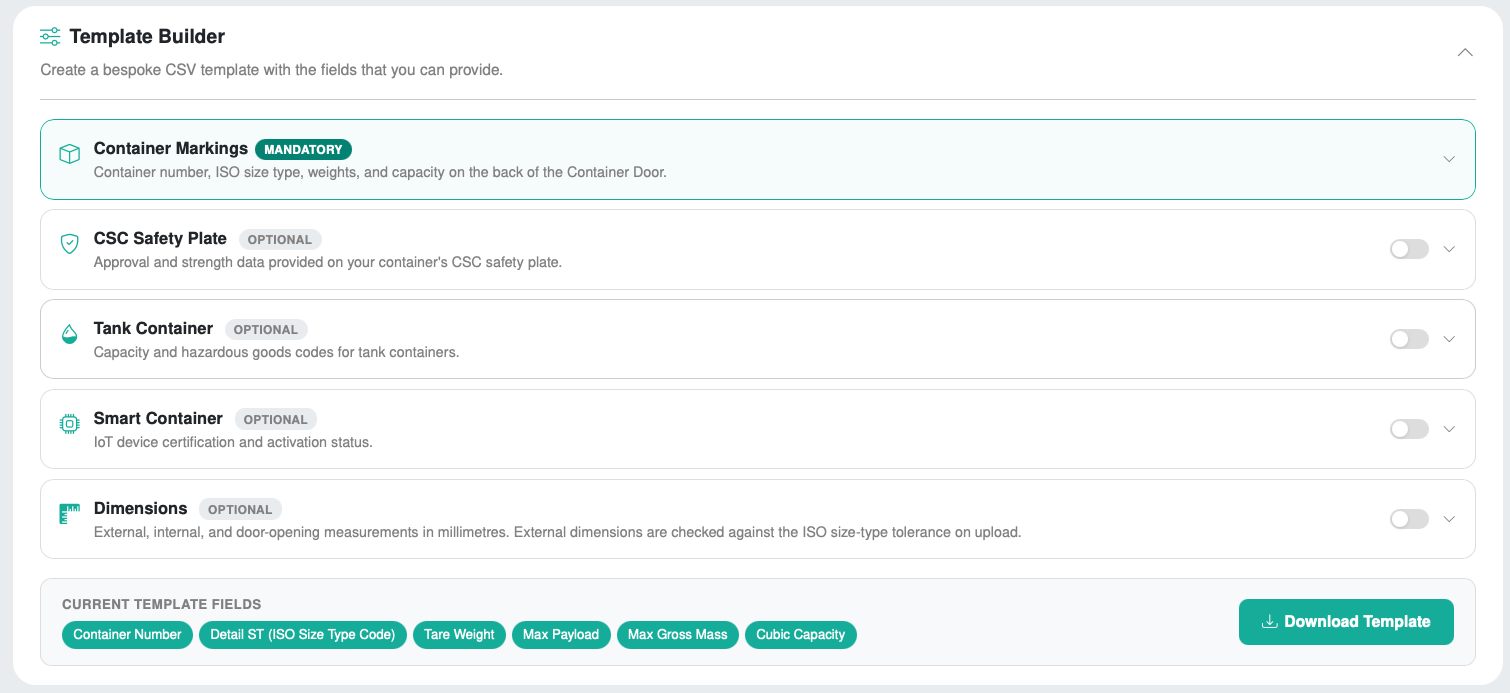
Follow the guide to upload your fleet, but before uploading, expand the 'Template Builder' section to create a bespoke CSV template containing only the fields you want to upload. Open each data category and select the individual fields you want — Container Markings are always included:
- Container Markings (always required) — container number, ISO size type, tare weight, max payload and max gross mass
- CSC Safety Plate — approval and strength data from your container’s safety plate
- Tank Container — capacity and hazardous goods codes for tank containers
- Smart Container — tracking device certification and activation status
- Dimensions — external, internal and door-opening measurements in millimeters
Download the generated template, populate it with your fleet data, and save it as a UTF-8 encoded CSV file.
## Action types
### Fleet In
The containers being uploaded are currently in your active fleet of containers, meaning you either own the containers or they are 'on hire' to you from a lessor.
If you own the BIC Code Prefix you will be noted as the **BIC Code Holder** for these containers. You will also be able to update the container details as the official owner.
If you are leasing these containers and do not own the BIC prefix the containers will be included in 'your fleet', the **BIC Code Holder** will be automatically identified. In this case the technical details of the container cannot be updated, only the BIC Code Holder has the rights to update their fleet detail.
### Fleet Out
The containers being uploaded are to be removed from your active fleet of containers. You can perform this action when the container is either owned by you and you are identified as the **BIC Code Holder** OR the container is in the 'my fleet'.
If the container is on hire to you, performing this action will remove the container from 'my fleet' section, meaning the container is no longer operated within your fleet.
If you also own the BIC Code Prefix you will be noted as the **BIC Code Holder** for these containers, in this case the off hire process is used to manage the **lease back container** use case in which the containers are owned by a leasing company but marked with your BIC Code Prefix. In this case you would be removed as the current operator of the container (as it is no longer in operation of your fleet) and an alert would be raised against the container showing that the container was a leaseback and is no longer under your fleet and the container number is no longer valid.
## Typical examples of use
Some typical examples of use cases and when to interact with the Fleet In / Out functionality.
### New Containers added to fleet
In this case you would simply add the containers to the template and upload using the **fleet in** feature. This will add the containers to your fleet in BoxTech and identify you as the BIC Code Holder if it registered to your account. This file can include owned containers and leased containers in the same file.
### Update Container details
In this case you would fill in all container details known to you (more complete the better) and upload using the **fleet in** feature. If the container exists and you are the BIC Code Holder the container details will be updated according to your request.
If the containers are new to BoxTech they will be added using the details provided.
### 'On Hire' containers to my fleet
In this case you would simply add the containers to the template and upload using the **fleet in** feature. This will add the containers to 'your fleet' in BoxTech.
### 'Off Hire' containers from my fleet
In this case you would simply add the containers to the template and upload using the **off hire** feature. This will remove lease containers from 'you fleet' in BoxTech.
### 'Off Hire' leaseback containers
In this case use the **off hire** feature, this covers when the container is marked with your BIC Code but is returned to the lessor as although marked against your BIC Code it was on lease. An alert will be raised to show this in BoxTech.
### Remove containers from Fleet
You should use the sold or scrapped feature for this purpose, as you would know why and where the containers are leaving the fleet. You can use the Fleet Out / Off Hire process if you are identifying containers in the same file that are being off hired or marked as sold or scrapped.
If you do not know where the containers are you can mark them as [lost or stolen](container-alerts.md#lost) using an alert.
For leased containers use the off hire process
---
## Search BoxTech
Once you are logged into BoxTech as a `consumer` you will have the facility to search for containers from the BoxTech database.
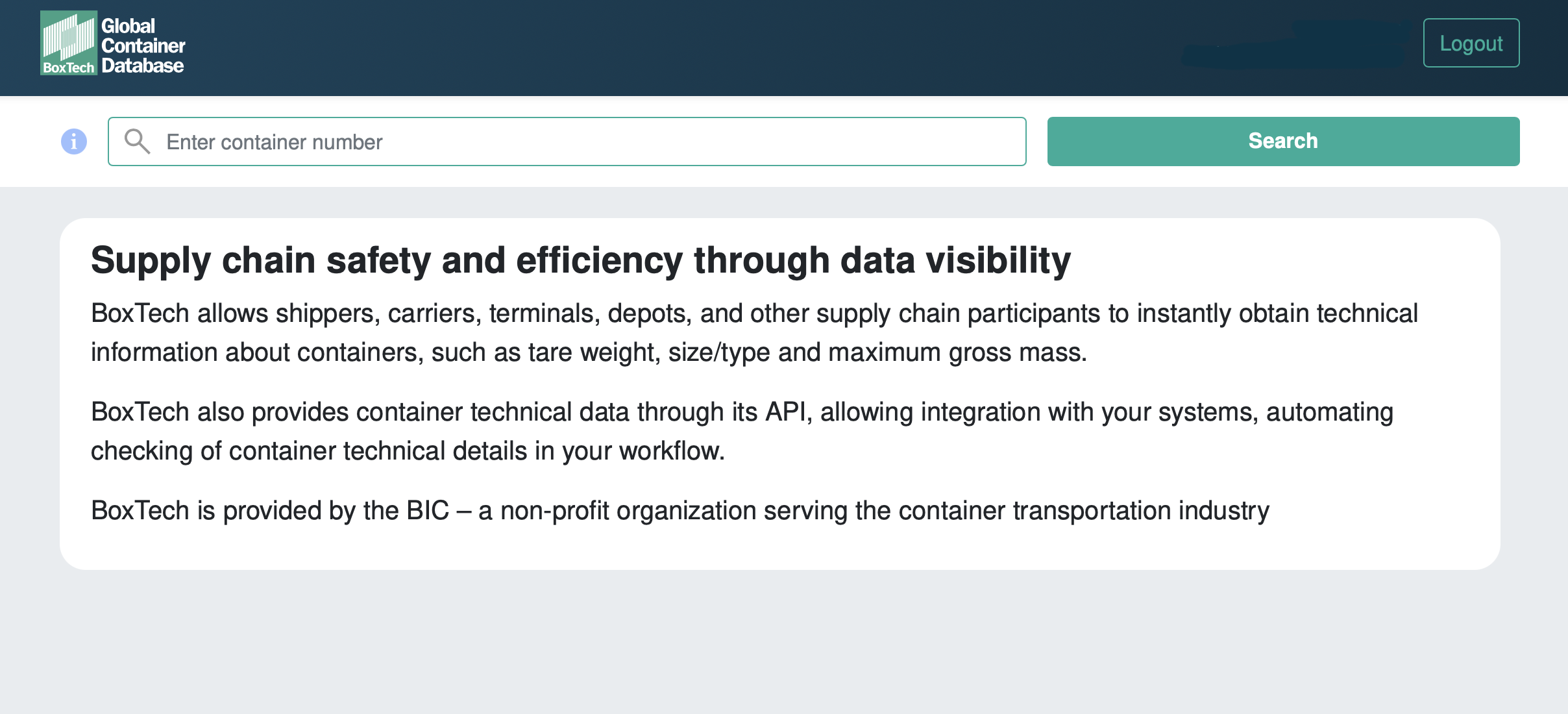
You can only search for valid and complete container numbers in BoxTech, to do this enter your container number in the search box at the top of the BoxTech screen.
## Search Results
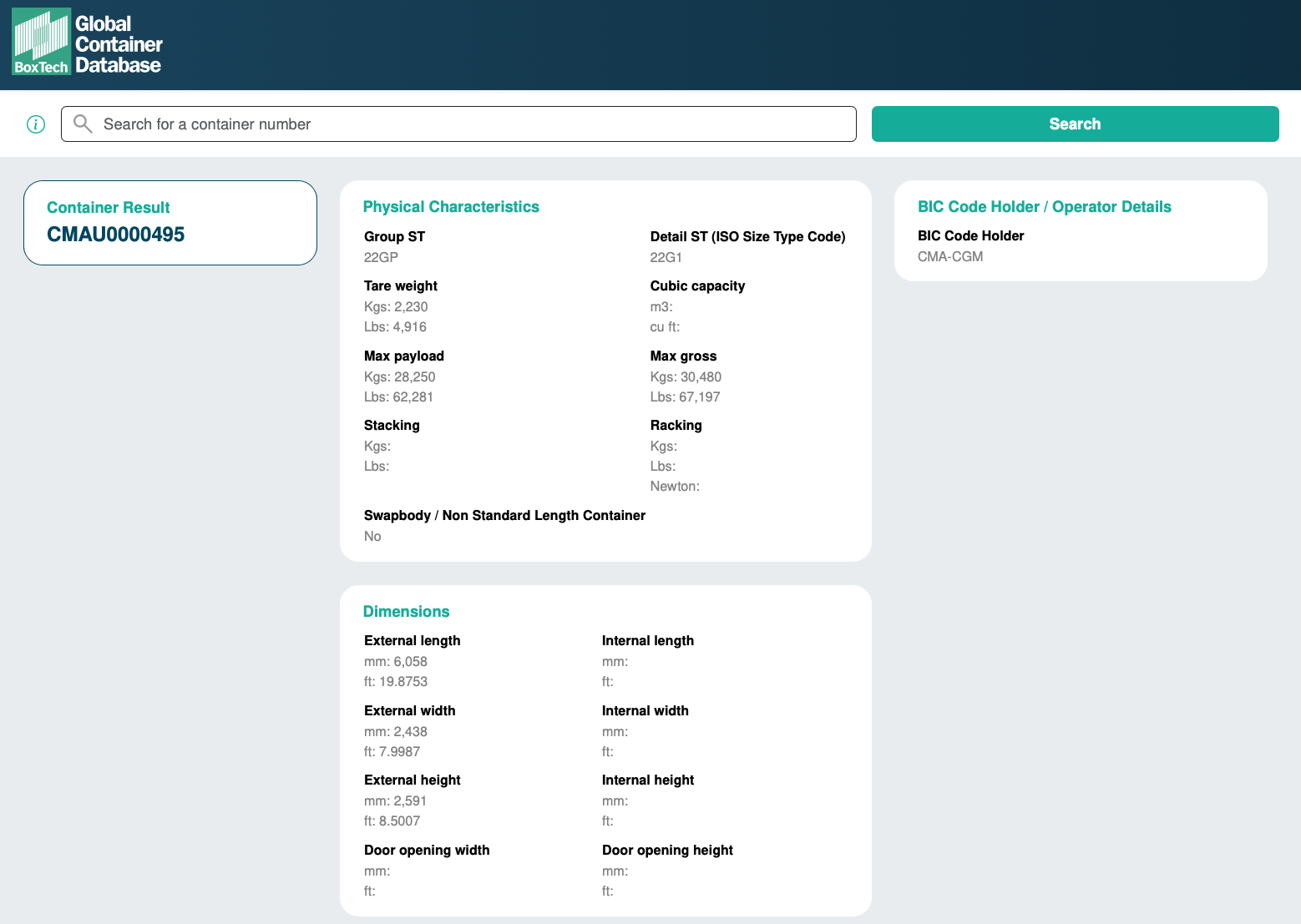
BoxTech returns the data about a single container in its results, from here you can view the
* Physical Characteristics
* Owner and Operator Details
* Dimensions of the Container
* One Door Off Operations
* Manufacturer Data and Data Plates
Details of the data fields shown in BoxTech are defined in [BoxTech Dataset](../integrations/boxtech-dataset.md)
---
## Upload History
You can navigate to the upload history from the homepage, this section shows the upload history for your account and allows you to view the uploaded files.
## Upload history
All uploads to BoxTech for your container fleet can be viewed on the upload history page. This is a shared upload page for all users belonging to the same company account.
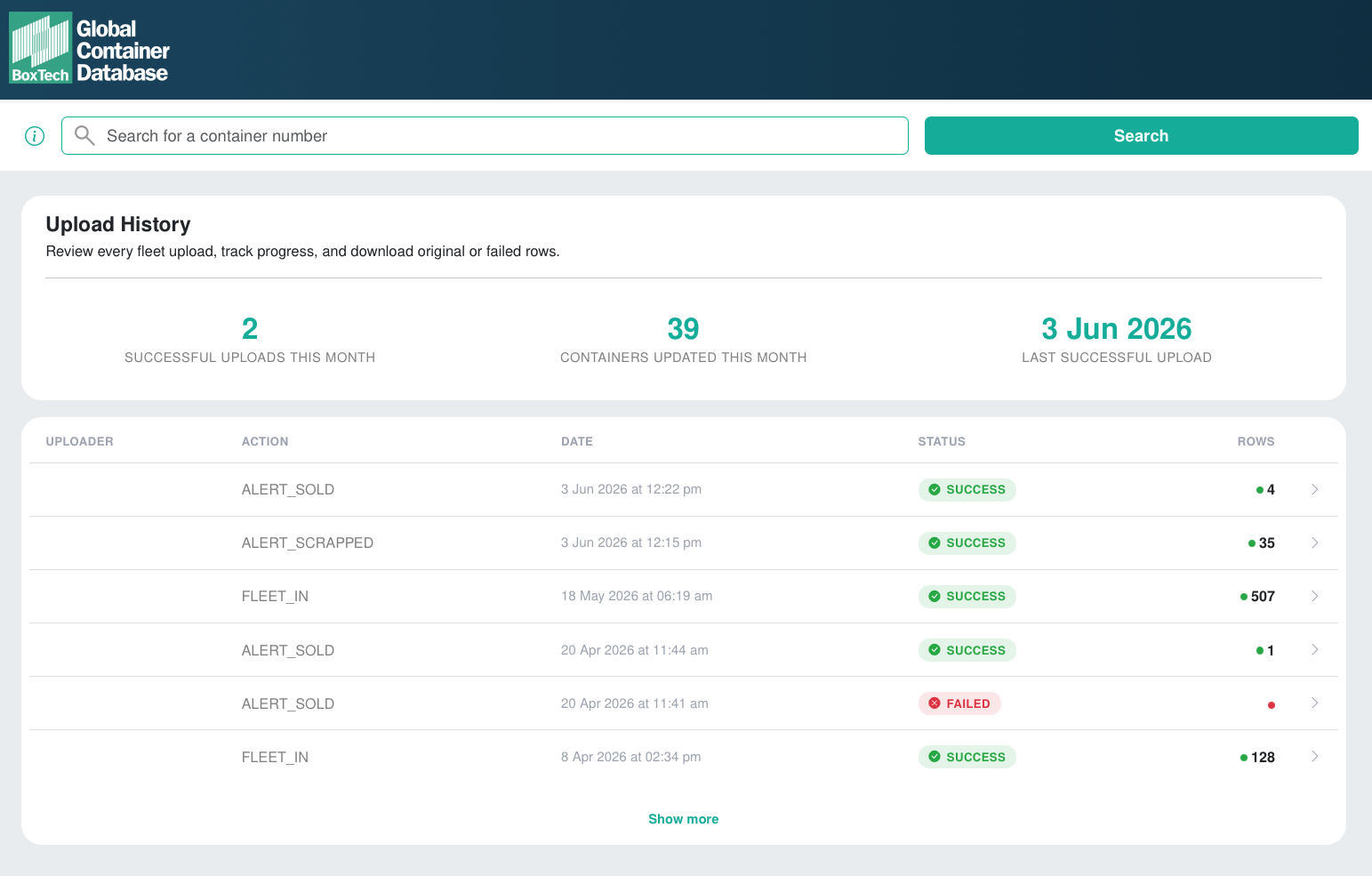
## Upload outcomes
The following results can occur from upload actions:
* Success ( Green Tick )
* Pending ( Grey Clock )
* Failed ( Red Cross )
An action is considered a 'success' if at least one row in the CSV is successfully accepted. If you see row errors in the screen then some of the containers did not process as expected, you will have been notified by email of these also, and can view the failed file showing just those rows with errors to resolve.
An action is 'pending' if the process is still running.
An action is 'failed' if no rows could be accepted or if the formatting of the file was incorrect or corrupted.
## Downloads
If there are any row errors you can use the grey '**failed**' button in the '**download'** column to download the failed file.
This failed file will also be emailed to you however the email download link will expire, but this page will always give access to the file.
You can also access the original file which was uploaded by clicking the green '**original**' button.
---
## View Fleet
The container fleet data you uploading into BoxTech is private to your account, consumers can only search by single container numbers within BoxTech. There is the option to view your entire fleet file, this allows you to verify data easily, and check for lease containers that have remained in the fleet data.
The metrics are the top are refreshed daily, and reflect the number of containers in the fleet and the number of containers in the filter(s) you have applied.
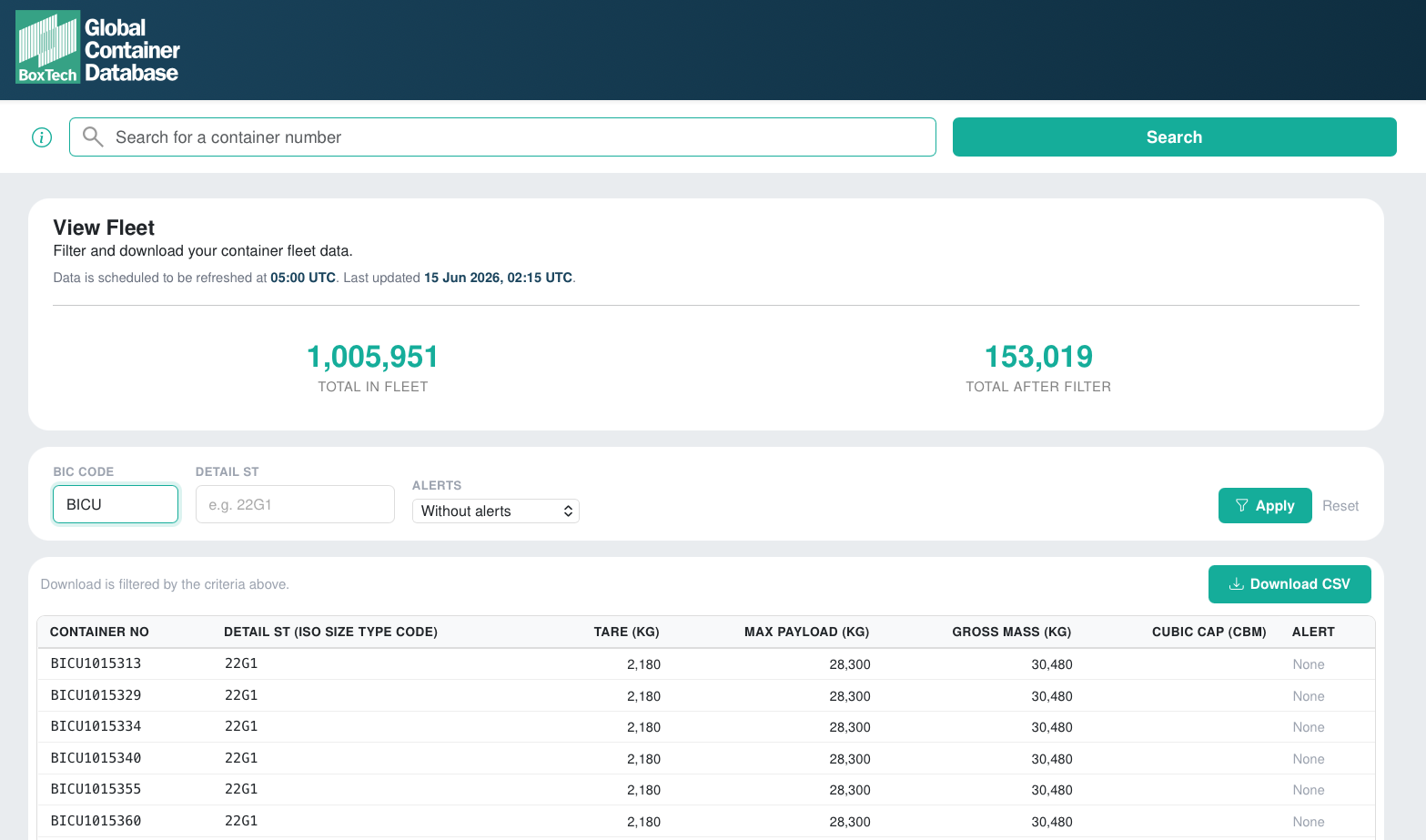
You can download the fleet file and use this to in the re-upload on [Manage Fleet](/guides/user-guide/managing-your-fleet) if you wish to modify any of the data.